WordPress
How to deploy a WordPress site on DigitalOcean
A clear WordPress launch path for agencies that want infrastructure, domains, SSL, and recovery work in one place.
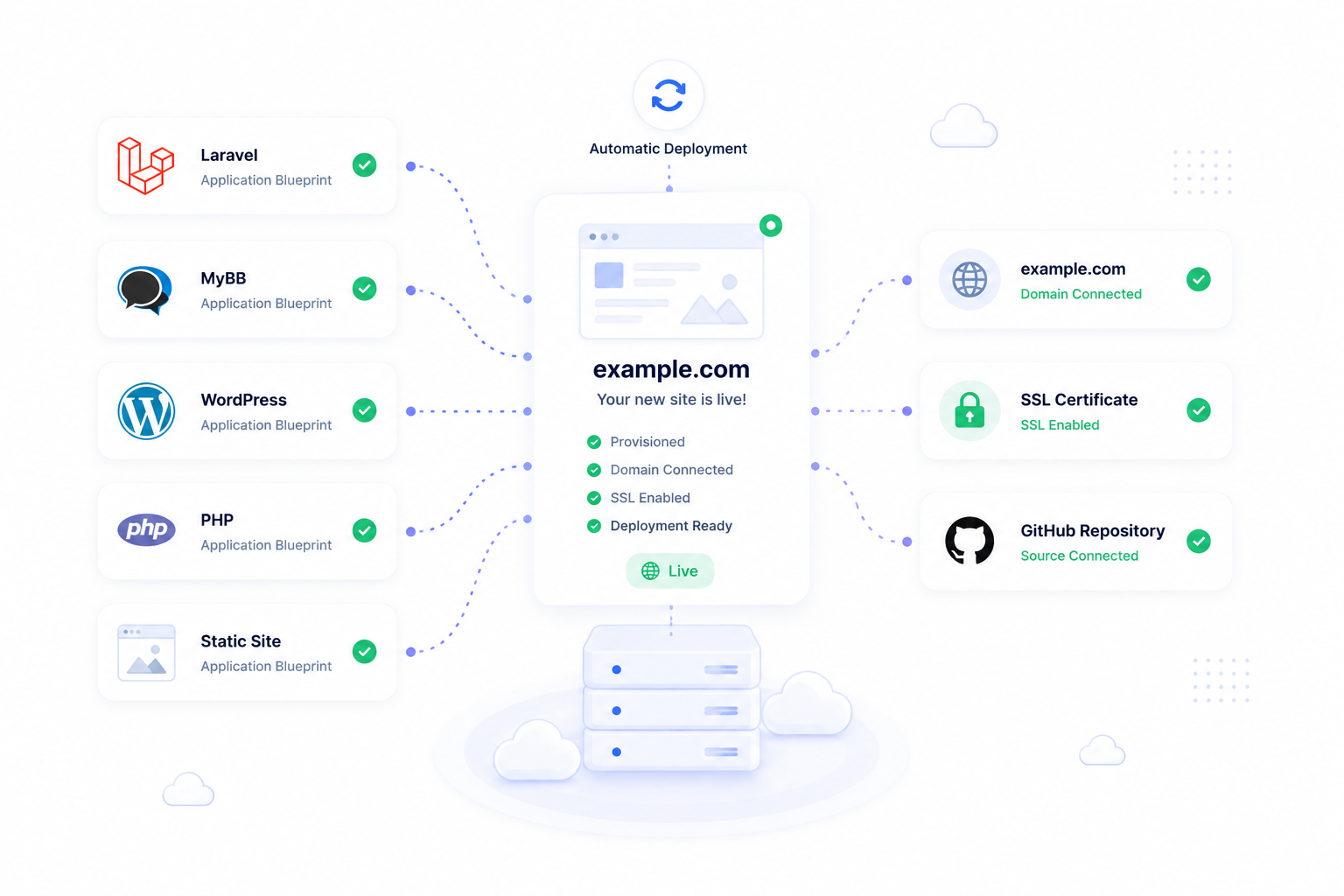
Why this workflow works
DigitalOcean is a common choice for WordPress projects because the infrastructure model is simple enough for client sites while still giving agencies control over the server. The risk is not the first install. The risk is losing track of domains, SSL, database state, backups, provider resources, and post-launch maintenance.
ForgedBase gives the WordPress launch a single operational home instead of spreading the work across provider dashboards, DNS notes, deployment notes, and private reminders.
Prerequisites
- A DigitalOcean account connected to ForgedBase.
- A domain or subdomain for the WordPress site.
- A plan for content migration if this replaces an existing site.
- Database and backup requirements.
- Access rules for the people who will maintain the site.
Step-by-step workflow
- Connect DigitalOcean and sync provider metadata.
- Create the server using the region and size that match the project.
- Confirm provisioning has completed before attaching the site.
- Create the WordPress site in ForgedBase.
- Configure the site domain but wait to cut traffic until the site is ready.
- Prepare any theme, plugin, or content migration work.
- Point DNS to the new server when ready.
- Issue SSL after DNS resolves correctly.
- Confirm the canonical WordPress URL uses HTTPS.
- Configure backups before launch approval.
- Add operational notifications for deploys, DNS readiness, and maintenance events.
Where ForgedBase helps
Agencies usually need repeatability more than novelty. ForgedBase makes the same checks visible for each WordPress project: which provider owns the server, which domain points to it, whether HTTPS is active, what backup schedule exists, and which team members can operate the workspace.
That makes handoff easier. A developer, owner, or support person can open the workspace and see the server and site state without asking who set up the original launch.
Common issues to check
- DNS is changed before the replacement site is ready.
- WordPress still has an old HTTP or staging URL configured.
- The server exists, but backups are not scheduled.
- SSL is requested before the domain resolves to the right target.
- Plugin or theme changes are made without a recovery point.
- Provider access belongs to one person instead of the team workspace.
Related ForgedBase docs
Launch checklist
- DigitalOcean connected and synced.
- Server ready.
- WordPress site created.
- DNS target confirmed.
- HTTPS active.
- WordPress canonical URL verified.
- Backup schedule active.
- Team permissions reviewed.