Automation
How to automate SFTP and FTP file transfers
Turn recurring file movement into a visible workflow with sources, destinations, run history, and operational alerts.
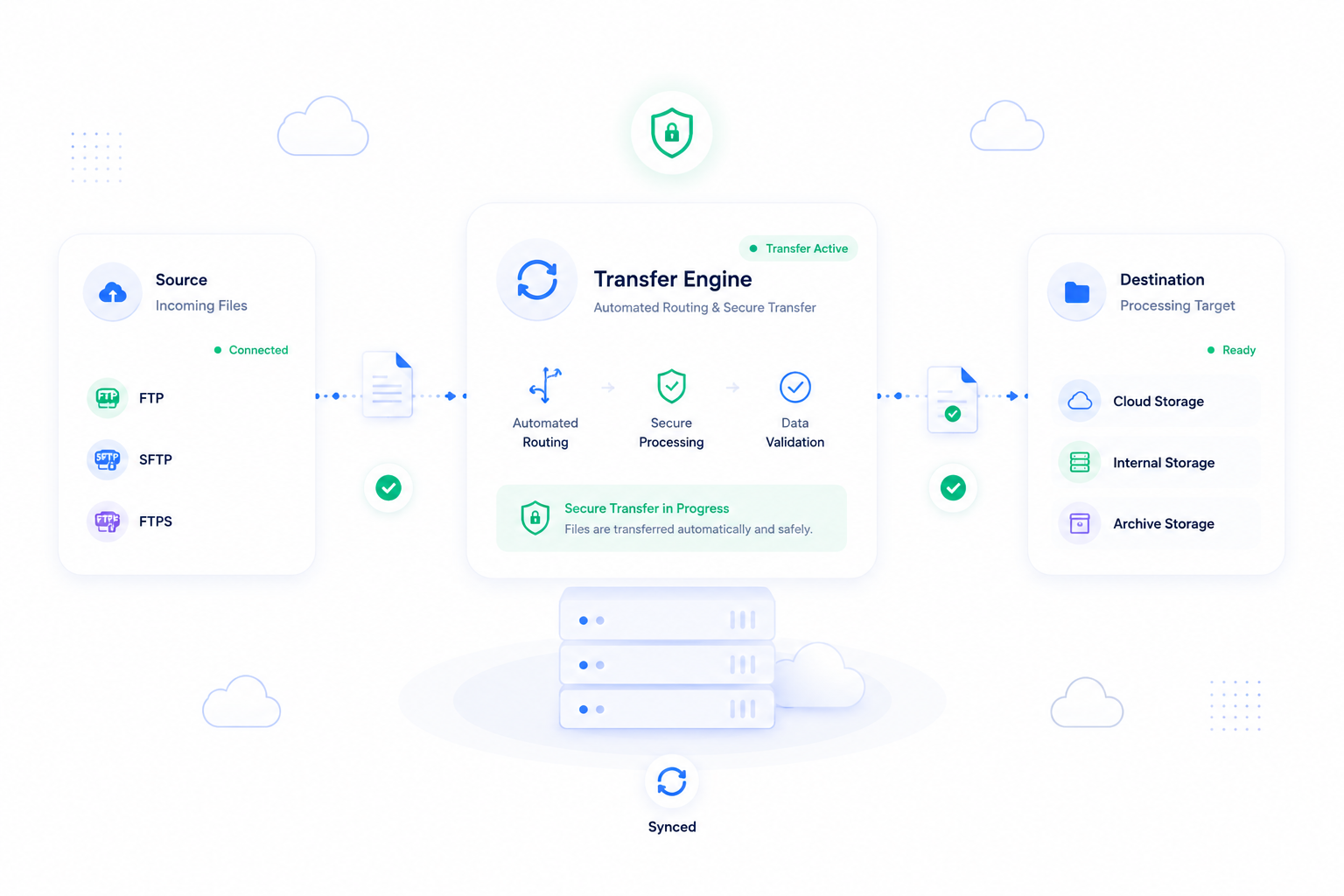
Why file transfers deserve visibility
SFTP, FTP, and FTPS jobs often look small until they become business-critical. A supplier drops files every morning. A client expects archives in cloud storage. A legacy system exports data to a fixed path. When one run fails, the team needs to know what happened, which files moved, which files were rejected, and what destination was affected.
ForgedBase turns recurring file movement into a visible route with sources, destinations, schedules, run history, item previews, and notifications.
Prerequisites
- Source credentials for SFTP, FTP, or FTPS.
- A destination such as internal storage or a connected cloud storage provider.
- File naming, path, and retention expectations.
- A schedule that matches the source system.
- Notification rules for failed or important runs.
Step-by-step workflow
- Create the file transfer route in ForgedBase.
- Add the source connection and verify credentials.
- Choose the destination and storage behavior.
- Define the schedule.
- Run a test transfer before relying on automation.
- Review accepted, rejected, and failed items.
- Add notifications for the people responsible for the workflow.
- Monitor the run history after the first scheduled executions.
- Adjust rejected file handling only after reviewing real examples.
- Keep credentials rotated and remove unused access.
Where ForgedBase helps
The useful part is operational evidence. Instead of asking whether a cron job ran, the team can inspect the route, run status, item results, and destination behavior. That is especially helpful when a file transfer sits between systems owned by different teams.
ForgedBase also keeps file transfer work close to sites, servers, providers, notifications, and activity history, so the route is not a mystery script on one machine.
Common issues to check
- Credentials work manually but fail from the configured source path.
- The source path changes without warning.
- Files are copied but rejected because names or types do not match the expected policy.
- A route succeeds but sends files to the wrong destination folder.
- Notifications go only to the person who created the route.
- Retention rules are unclear, so old files accumulate.
Related ForgedBase docs
Operations checklist
- Source credentials validated.
- Destination verified.
- Schedule confirmed.
- Test run reviewed.
- Rejected item handling understood.
- Notifications configured.
- Route owner documented.
- Access reviewed regularly.